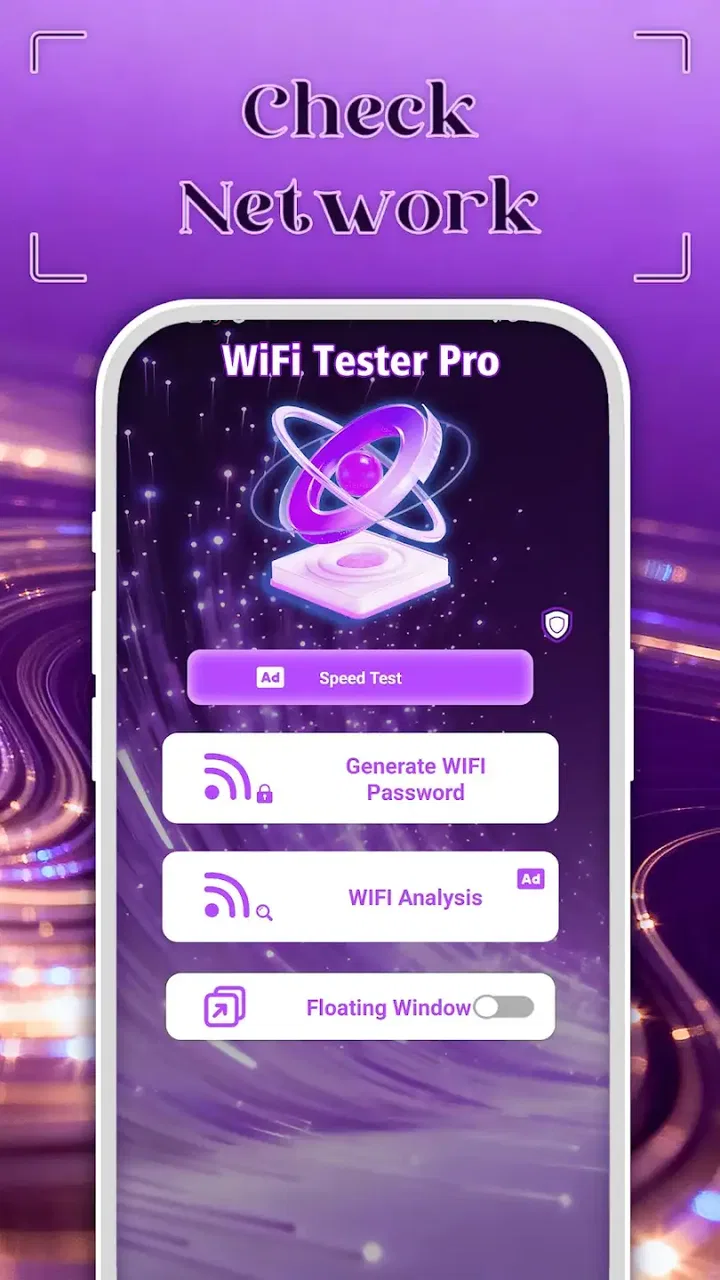
WiFi Tester Pro
- 4.6
- Rating
- 10.00K
- Installs
- Free
- Price

 Analysis by App-foxy
WiFi problems rarely arrive at a convenient moment. A video pauses during a call, a laptop refuses to load a page, or a phone quietly switches between networks while you are trying to work. The frustrating part is often not the failure itself, but the guesswork that follows: is the router at fault, is the signal weak, or is the device connected to the wrong network? WiFi Tester Pro is designed as a practical tool for that first round of checking, giving people a focused way to investigate their network instead of repeatedly turning WiFi off and on.
I reviewed it as an everyday utility rather than something I would open for entertainment. That distinction matters. This is not an app I would keep on screen all day, but it can be useful when a connection behaves strangely and I want a clearer starting point. Its store summary presents it as a personal network data commander, while the short description identifies it simply as a WiFi tester. In practice, that sets the right expectation: it is meant to help you examine a wireless connection, not replace a router’s administration panel or a full network-monitoring platform.
Why a simple WiFi check can save time
The usual alternative is a mixture of system settings, browser searches, and trial and error. Android’s built-in WiFi screen can tell you which network you joined, but it may not give the kind of focused view you want when comparing a troublesome room with a reliable one. A router app can go deeper, although it is often tied to a specific brand and may require an account. General internet speed tests are useful for performance, yet they do not always explain whether the wireless connection itself is the weak link.
You May Also Like

 AccuWeather: Weather Radar
AccuWeather Review: A Quick, Clear Forecast for Everyday Decisions
For everyday plans, the best forecast is the one you can understand quickly. AccuWeather makes rain timing, radar, and local conditions easy to act on, with a few trade-offs.

 Hill Climb Racing
Why Hill Climb Racing Still Turns Crashes Into One More Run
A tiny car, a bumpy hill and one more upgrade: Hill Climb Racing keeps resurfacing because its simple chaos makes every near-miss feel personal.

 AliExpress - Shopping App
AliExpress Makes Global Shopping Feel Personal, but Shoppers Bear the Risk
AliExpress turns a global marketplace into a pocket-sized discovery engine. Its reach is useful, its shopping loop compelling, and its trade-offs easy to miss.

 Lords Mobile: Kingdom Wars
Lords Mobile Is a Kingdom-Building Routine, Not a Quick Match
A case-by-case verdict on the building, battles, device demands, and social commitments that make Lords Mobile rewarding for some players and exhausting for others.

 PDF Scanner app - TapScanner
TapScanner Makes Paperwork Easier to Capture, Check, and Share
TapScanner makes scanning with a phone feel less like a rescue operation and more like a dependable step in getting work done. Its capture tools are useful, though not flawless.

 Block Blast!
 Shows How Much a Puzzle Game Can Leave Out
A quiet grid game shows why puzzle players increasingly value instant clarity, repeatable skill and low-pressure play—and where the genre still needs to catch up.
More From Our News Desk
View All News


That is where this app makes sense. I see its main value in shortening the diagnostic path. Instead of beginning with “the internet is broken,” I can begin with a more useful question: “what is happening between this phone and the access point?” That change in wording is small, but it helps avoid unnecessary resets and support calls.
The app comes from Everyday Decision Studio and belongs to the tools category. It is free, carries an Everyone age rating, and its current version is 1.0.0. Those details make it approachable for a household troubleshooting job, especially for someone who does not want to commit to a paid network suite before knowing whether it will help.
Its audience is broader than technical users, but the best results still come from having a specific question in mind. If you simply open it expecting a magic “fix my WiFi” button, you may be disappointed. A tester can help you understand a connection; it cannot repair a damaged cable, reposition a router, improve an overloaded service plan, or solve an outage at your provider.
Getting to the first useful result
The most sensible way to start is with a controlled comparison. I would first check the network while standing close to the router, then repeat the check from the room where the problem normally appears. Keeping the network and device the same makes the result more meaningful than testing random connections at different times.
Before drawing conclusions, I would also make sure the phone is actually connected to the intended WiFi network. Homes with similarly named networks, guest access, or multiple access points can create misleading results. A weak connection may not be a fault in the service at all; the phone might simply be attached to a less suitable access point. This is one of the most useful habits when using a tester: confirm the context before interpreting the screen.
I would then record the result mentally or in a note, move only one variable at a time, and test again. Change location first, then perhaps close background activity, and only afterward consider restarting equipment. This workflow turns the app from a one-off curiosity into a small diagnostic routine. The important insight is that repeatable comparisons are more valuable than a single impressive-looking reading.
Users may also wonder whether the app is suitable for checking someone else’s network. I would treat it as a device-side utility for networks you are authorized to use. It should not be approached as a way to break into nearby connections, bypass passwords, or inspect private traffic. A responsible test means checking your own home, office, or another network where the owner has given permission.
Useful everyday situations
Consider a common evening problem: the television streams normally, but a phone in the bedroom keeps buffering. Rather than rebooting everything immediately, I would compare the phone’s connection near the router with the connection in the bedroom. If the behavior changes sharply with distance, that points toward coverage or interference rather than a complete internet outage. The next step could be moving the router, adjusting the room layout, or considering better coverage equipment.
Another practical case is working from home. If a video meeting becomes unreliable, checking the connection before and after moving closer to the access point can separate a local wireless issue from a broader service problem. That does not guarantee a perfect diagnosis, but it can tell you whether relocating temporarily is a sensible workaround while you investigate further.
The app can also help when a guest reports that WiFi is slow but your own phone seems fine. Testing from the guest’s position, with the same network conditions, gives you a more honest picture than relying on your own device beside the router. Different phones have different radios and antenna designs, so one device’s experience should not automatically be treated as proof that the network is healthy everywhere.
A less obvious use is checking a new room before deciding where to place a smart device. If you are planning to install a camera, speaker, printer, or other connected product, a quick comparison from that location can reveal whether the placement is likely to be frustrating. It is cheaper to discover a weak spot before mounting equipment or routing cables.
I would also use it after changing the router’s position. Many people move a router behind furniture or into a cabinet because it looks tidier, then wonder why coverage has changed. Testing the same rooms before and after the move provides a practical answer. The trade-off is that the app can show a difference without explaining every physical cause, so walls, appliances, neighboring networks, and device placement still require common sense.
What it removes from the troubleshooting process
The biggest friction removed is the need to jump between unrelated tools. A browser-based speed test may tell you that performance is poor, while the system settings show the connected network, but switching between them can make a simple check feel scattered. A dedicated tester gives the task a clearer home, which is helpful when you are already dealing with an unreliable connection.
It also encourages a better order of operations. I prefer checking the local wireless situation before restarting the modem, changing passwords, or contacting support. Those actions can interrupt everyone in the house and may not address a problem that exists only in one room. A quick local check can prevent unnecessary disruption.
There is a useful distinction between “the WiFi connection is weak” and “the internet service is slow.” A tester is most valuable for the first part. If the wireless link looks reasonable in several locations but websites remain slow, the next investigation should move beyond the app toward the router, provider, device software, or the service itself. Knowing when to stop using the tool is part of using it well.
For less technical family members, the app may be easier to explain than a collection of router menus. I could ask someone to test from two locations and report whether the results differ, rather than asking them to find an administrator page or change advanced settings. That makes it useful as a communication aid when one person handles the home network and another person experiences the problem.
Still, I would not confuse simplicity with completeness. A focused tester can reduce friction, but it does not eliminate the need to understand what the result means. A single reading taken during a busy evening may not represent the connection at another time. Likewise, a good result near the router says very little about a far corner of the house. The app helps gather evidence; it does not make the evidence automatically conclusive.
Where it fits beside familiar alternatives
Compared with the phone’s standard WiFi settings, this app is appealing when I want a deliberate test rather than a quick glance at the connected network. Built-in settings remain better for basic actions such as joining another network, forgetting a saved connection, or changing ordinary device preferences. I would use the system menus for those jobs and this utility for focused checking.
Compared with a router manufacturer’s application, WiFi Tester Pro should be considered more general. A router app may provide device lists, configuration controls, firmware tools, or parental features, but those benefits often depend on owning compatible hardware. A standalone tester is more convenient when the router brand is unfamiliar, when I am helping someone else, or when I only need to investigate a connection without changing network settings.
Compared with an internet speed-test service, the difference is mainly purpose. A speed test answers a performance question at a particular moment. This app is better approached as part of a local wireless investigation. I would not use one as a complete substitute for the other. If a connection is unstable, I want to know both whether the device is communicating well with the access point and whether the outside service is delivering the expected performance.
Advanced network scanners and monitoring tools can be stronger choices for professionals who need historical records, detailed device discovery, or continuous observation. They may also offer more control, but that extra depth can create more setup and more opportunities to misread technical information. For a household user who wants a direct way to investigate a weak room or an inconsistent phone connection, the lighter approach is more practical.
Small habits that make the results more useful
My first tip is to test at the same time of day when comparing changes. A room can appear fine in the morning and troublesome later, not because the walls changed, but because household activity and nearby networks did. Keeping the timing similar makes a before-and-after comparison less misleading.
My second tip is to avoid changing several things at once. Restarting the router, moving it, switching networks, and updating a device may eventually improve the experience, but you will not know which action helped. Use the app before and after one deliberate change whenever possible. This takes slightly longer at the beginning and saves time when the problem returns.
My third tip is to test the device that actually suffers. A reading from your phone should not be used as a final verdict for a laptop, console, or smart television in another room. The app can help identify the environment, but the affected device remains the most relevant witness.
My fourth tip is to treat a strong local result as a reason to broaden the investigation, not as proof that everything is fine. If the phone communicates well with the router but video calls still fail, check the service, the application, the device, and other traffic on the network. This prevents the common mistake of repeatedly testing the same local condition while ignoring the real source of the slowdown.
Who should use it and who should skip it
I would recommend it to people who regularly need to answer practical questions about home WiFi: why one room performs poorly, whether a router move helped, whether a new device is positioned sensibly, or whether a problem appears local to one phone. It is also a reasonable first tool for family members who want something less intimidating than a router control panel.
It is less suitable for someone looking for automatic network repair, detailed security auditing, or a permanent performance history. Users who manage offices, troubleshoot many access points, or need professional reporting may be better served by a more specialized solution. Likewise, if your only goal is to check download performance for an internet plan, a conventional speed test may answer that narrower question more directly.
Privacy-conscious users may reasonably want to understand what any network utility does before relying on it. I would use it conservatively: test networks you have permission to examine, avoid treating technical output as a license to inspect other people’s connections, and keep the app’s role limited to troubleshooting. That mindset is more important than any individual reading.
My verdict after using it as a troubleshooting tool
WiFi Tester Pro succeeds when the problem is uncertainty. It gives a focused place to begin, helps compare locations, and can save the time normally lost to random restarts and vague assumptions. I especially like the idea of using it before and after a single change, because that turns everyday frustration into a simple experiment.
Its limitations are equally clear. A tester cannot improve coverage by itself, cannot repair an internet outage, and cannot explain every result without some knowledge of the home setup. It is also not the right replacement for router management or professional monitoring. The best experience comes from treating it as a first diagnostic step rather than a universal network solution.
The app has reached over ten thousand installs and holds a 4.6 average from around fifty ratings, which suggests that its straightforward purpose is resonating with an early audience. I would not choose it because of those figures alone; I would choose it because the workflow is sensible for small, recurring WiFi problems. With a free price and an Everyone rating, the barrier to trying it is low.
Released on May 14, 2026, by Everyday Decision Studio, it is still at version 1.0.0 and supports devices running Android 10 or newer. That makes checking compatibility important before installing, especially on an older phone. For compatible users, my recommendation is simple: use it when you need evidence about a wireless connection, compare results carefully, and move to a router tool or service investigation when the issue clearly lies elsewhere. It is most valuable not when it promises to fix WiFi, but when it helps you stop guessing what needs fixing.
FAQs for WiFi Tester Pro
01What is WiFi Tester Pro and how does it work?
WiFi Tester Pro is a comprehensive WiFi analysis tool designed to help users optimize their wireless network. It works by scanning your network to identify signal strengths, channel usage, and potential interference. This allows users to make informed decisions about channel selection and network configuration to enhance performance.
02Is WiFi Tester Pro compatible with both Android and iOS devices?
Yes, WiFi Tester Pro is available for both Android and iOS platforms. This ensures that users can access the app’s features regardless of their device type. The app has been optimized to provide a seamless experience on both operating systems, offering the same robust functionality to analyze and enhance WiFi networks.
03Does WiFi Tester Pro require any special permissions to operate?
WiFi Tester Pro requires certain permissions to function effectively. These typically include access to your device’s location and WiFi settings. This is necessary for the app to accurately scan and analyze nearby networks and provide detailed insights. Users are assured that their privacy is respected, with no data being shared without consent.
04Can WiFi Tester Pro help with improving my internet speed?
While WiFi Tester Pro does not directly increase your internet speed, it assists in optimizing your network setup. By identifying the best channel and reducing interference, it can help in achieving a more stable and reliable connection, which may lead to improved perceived speeds and reduced latency during usage.
05Does WiFi Tester Pro offer customer support in case of issues?
Yes, WiFi Tester Pro provides customer support to assist with any issues or questions users may have. Support can be accessed through the app or the developer’s website, where users can find FAQs, troubleshooting guides, and contact options for more personalized assistance to resolve any challenges encountered.
Pros
- User-friendly interface for easy navigation.
- Accurate speed tests with detailed results.
- Secure connection monitoring features.
- Supports multiple device connections.
- Customizable notifications for network changes.
Cons
- Limited features in the free version.
- Requires frequent updates for accuracy.
- Some features need a stable connection.
- Advertisements in the free version can be intrusive.
- Occasional delays in detecting new networks.

WiFi Tester Pro
Gallery